Keep Everywhere running
Some phones stop background apps to save battery. Allow AirFlick AI to run in the background.
In Setup, tap Open settings next to Battery. Android opens its battery optimization list or AirFlick AI's App info.
In App info, open App battery usage (or Battery).
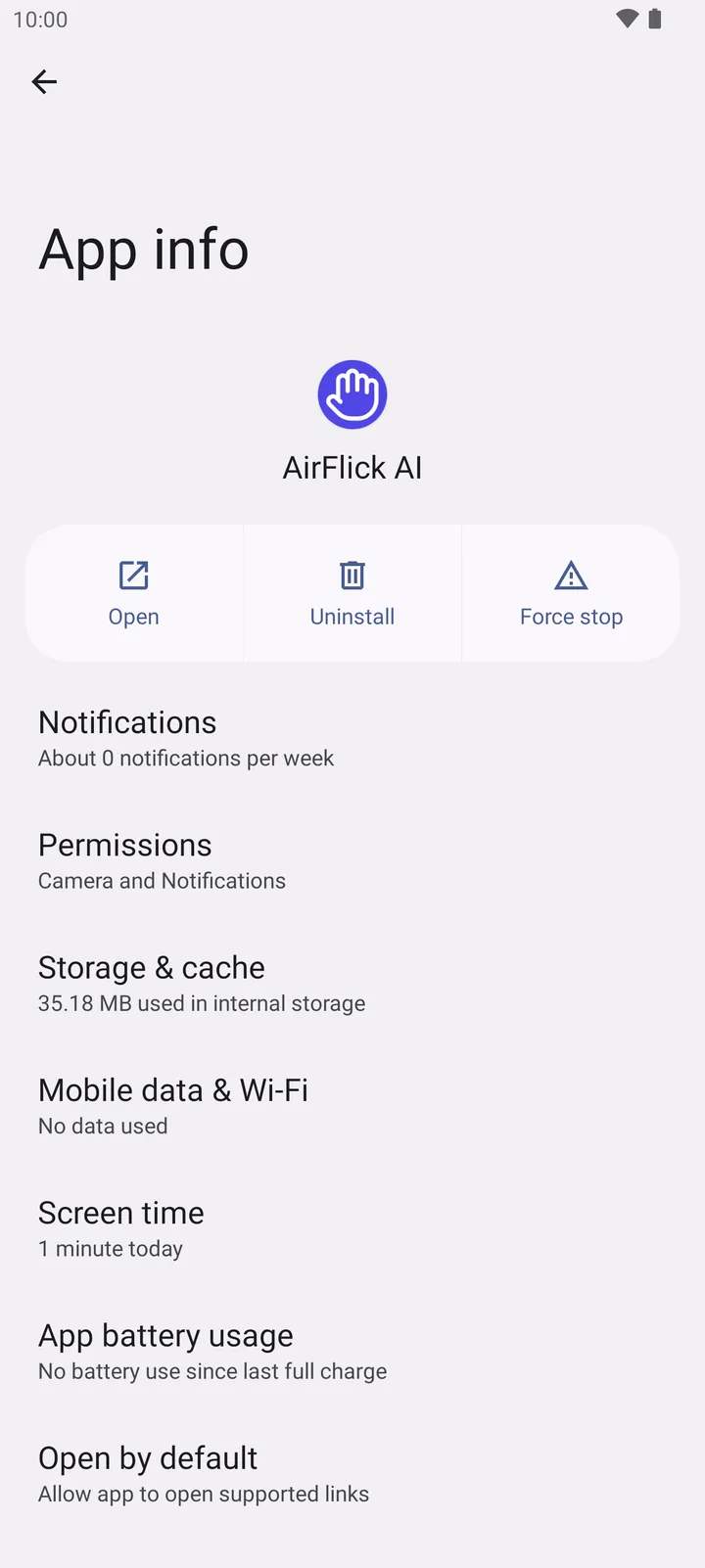
- App battery usage
Choose Unrestricted. Everywhere uses the camera at a low frame rate and slows down further when no hand is in view, but Android may still stop it when the setting is Optimized.
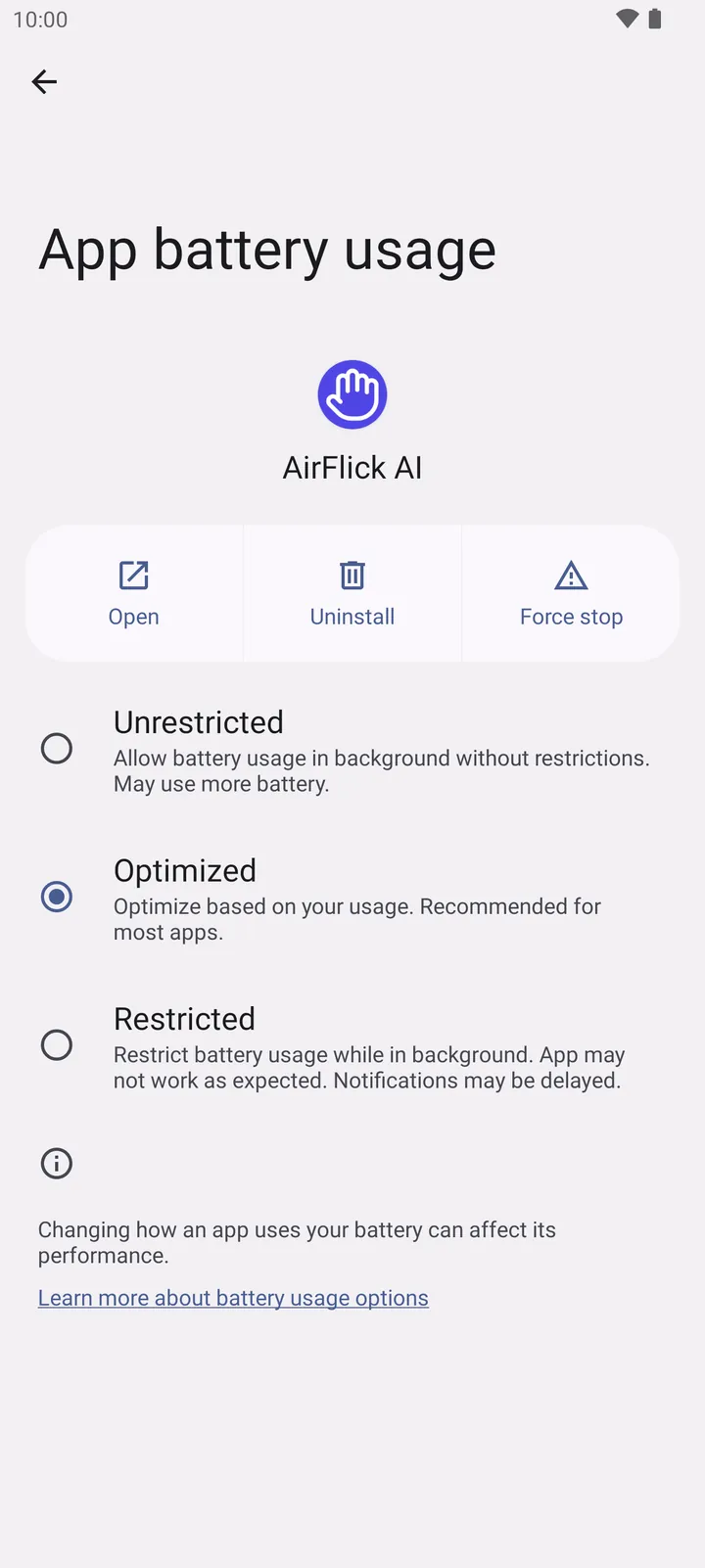
- Unrestricted
Come back to AirFlick AI: the Battery row shows a check mark.
On your phone
- OnePlus, OPPO and realme
- Settings, Apps, AirFlick AI, Battery usage: turn on Allow background activity (or choose Unrestricted). Also lock the app in Recent apps: open recents, tap the menu on its card and choose Lock.
- Samsung
- Settings, Apps, AirFlick AI, Battery: choose Unrestricted. Then check Settings, Battery, Background usage limits, and make sure AirFlick AI is not in Sleeping or Deep sleeping apps.
- Xiaomi, Redmi and POCO
- Settings, Apps, Manage apps, AirFlick AI: turn on Autostart, then under Battery saver choose No restrictions. Lock the app in Recent apps too.
How to turn it off
- App info, Battery: choose Optimized again. Everywhere still works while you use it, but Android may stop it in the background.