Turn on Everywhere
Use your gestures in any app: scroll, go back, control music and more.
On Home, switch the top control to Everywhere, then open Setup. The checklist shows what is ready and what is still needed.
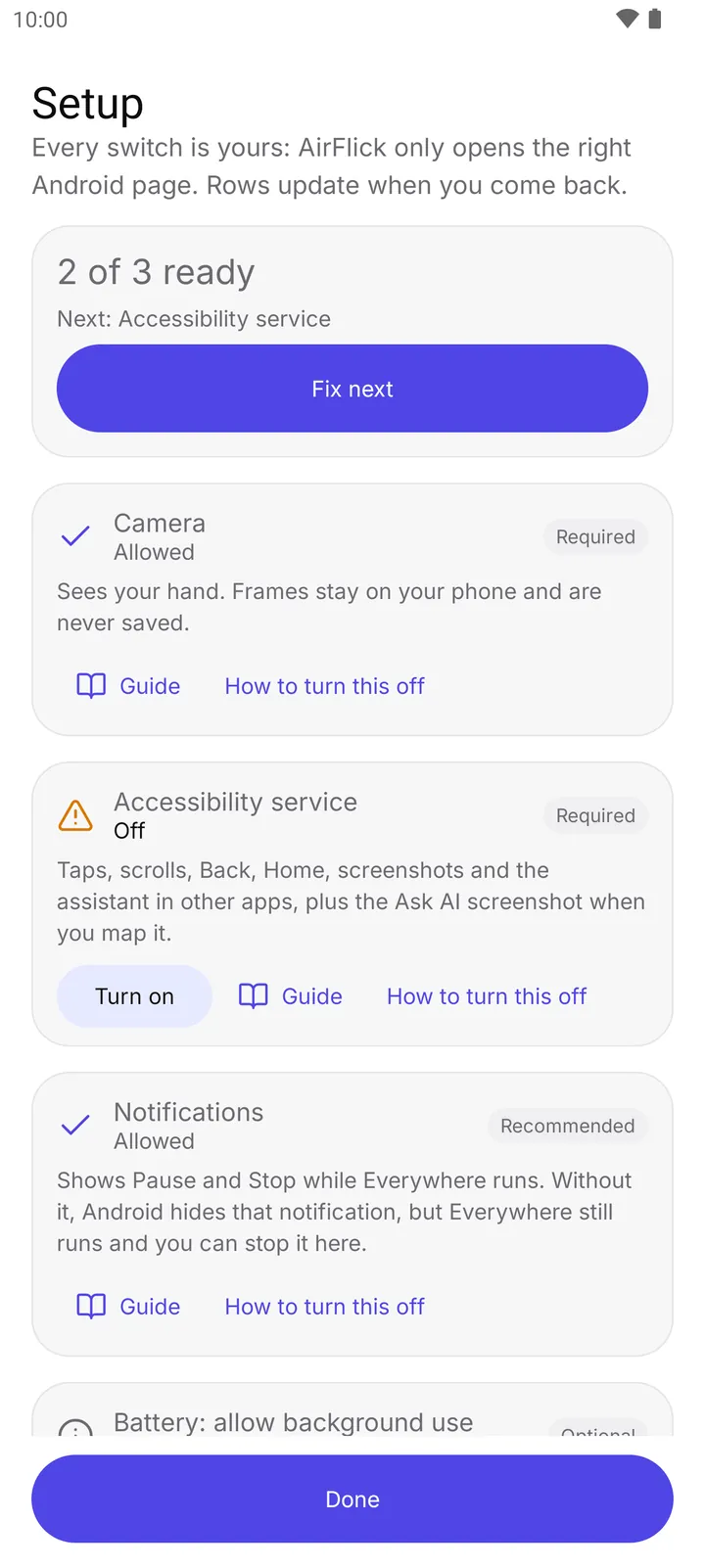
- Summary and Fix next
- Turn on, next to Accessibility service
Tap Fix next. It walks through the remaining steps in order: camera, the accessibility service, notifications and, on phones known to stop background apps, battery. Before the accessibility step, AirFlick AI explains exactly what the service does; tap I agree to continue.
Each row turns green when you come back from Android settings. Notifications are recommended so the ongoing notification shows Pause and Stop.
Back on Home, the card says Ready to start. Tap Start, then switch to any app. A notification shows while the camera is on.
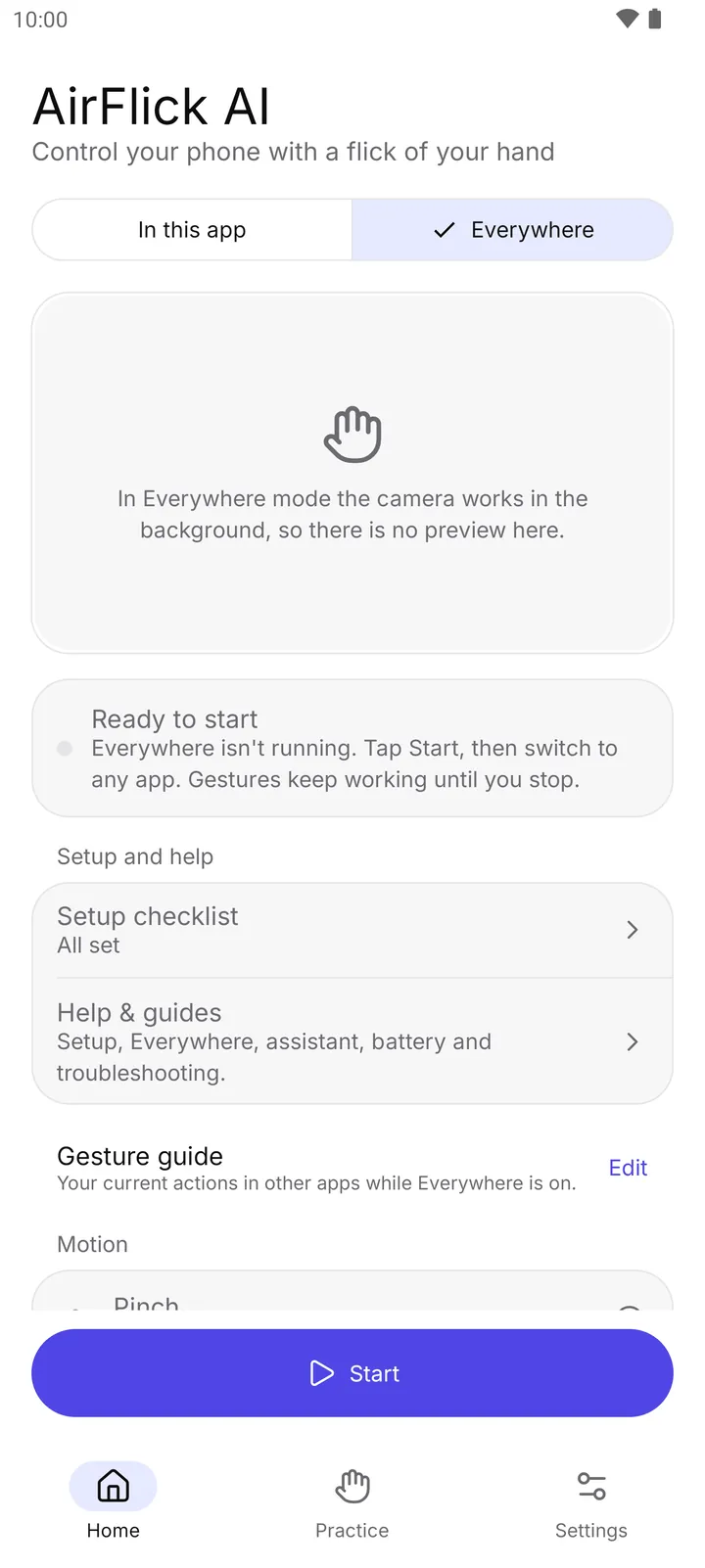
- Ready to start
- Start button
To change what each gesture does in other apps, open Settings, Edit gestures, and choose the Everywhere tab.
How to turn it off
- Tap Stop on Home or in the notification. Everywhere also stops when the camera is taken away or the phone gets too warm.
- Switching Home back to In this app stops Everywhere too.