Turn on the accessibility service
Lets gestures tap, scroll, go back and go home in other apps. It doesn't read your screen. Ask AI takes one screenshot, only when you use it.
Tap Start on Home in Everywhere mode (or Turn on next to Accessibility service in Setup). Read the explanation and tap I agree. A short animation shows what to tap; tap Open settings and Android's Accessibility settings open. A notification repeats the steps if you need them.
Scroll to Downloaded apps (on some phones Installed apps or Installed services) and tap AirFlick AI.
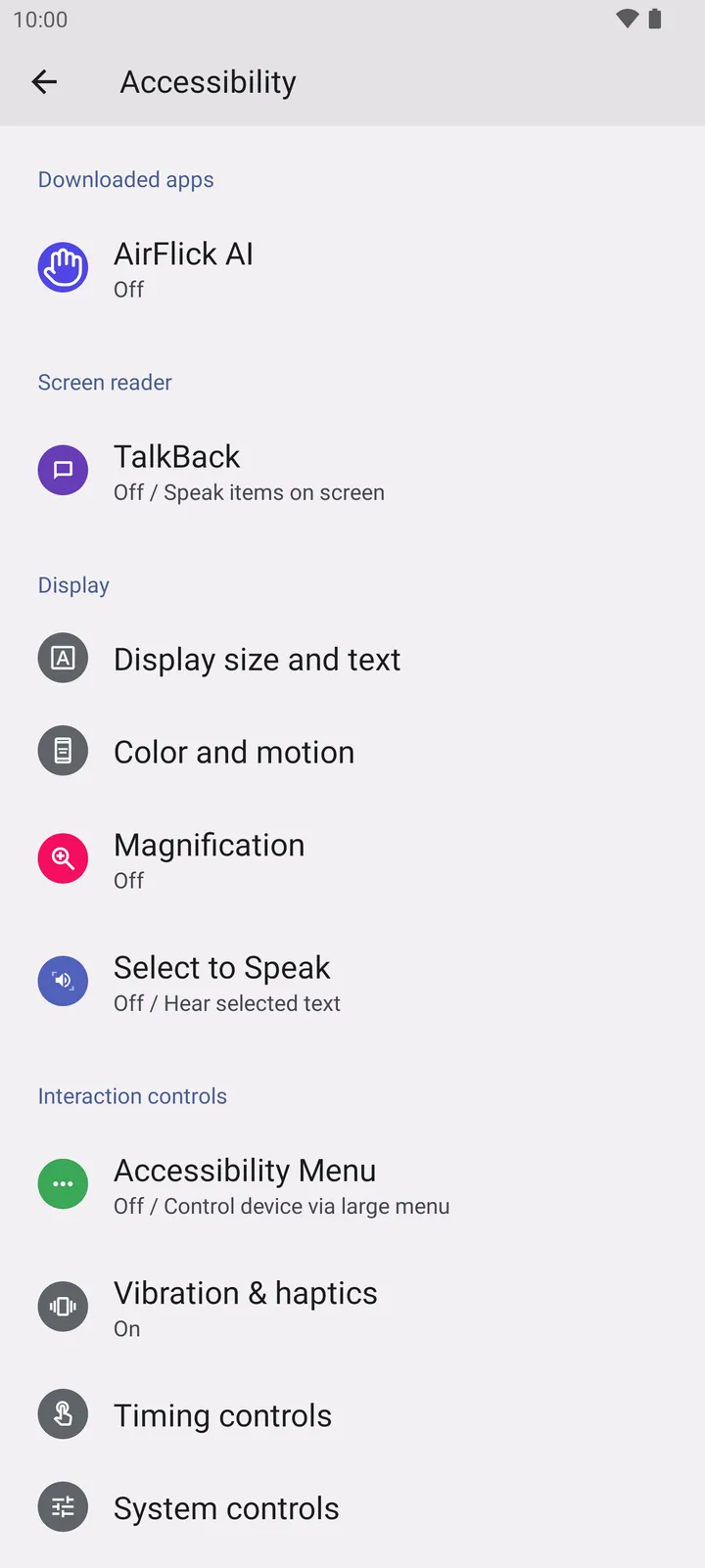
- AirFlick AI under Downloaded apps
Turn on Use AirFlick AI and confirm with Allow. Android lists what the service may do; AirFlick AI only performs the actions mapped to your gestures.
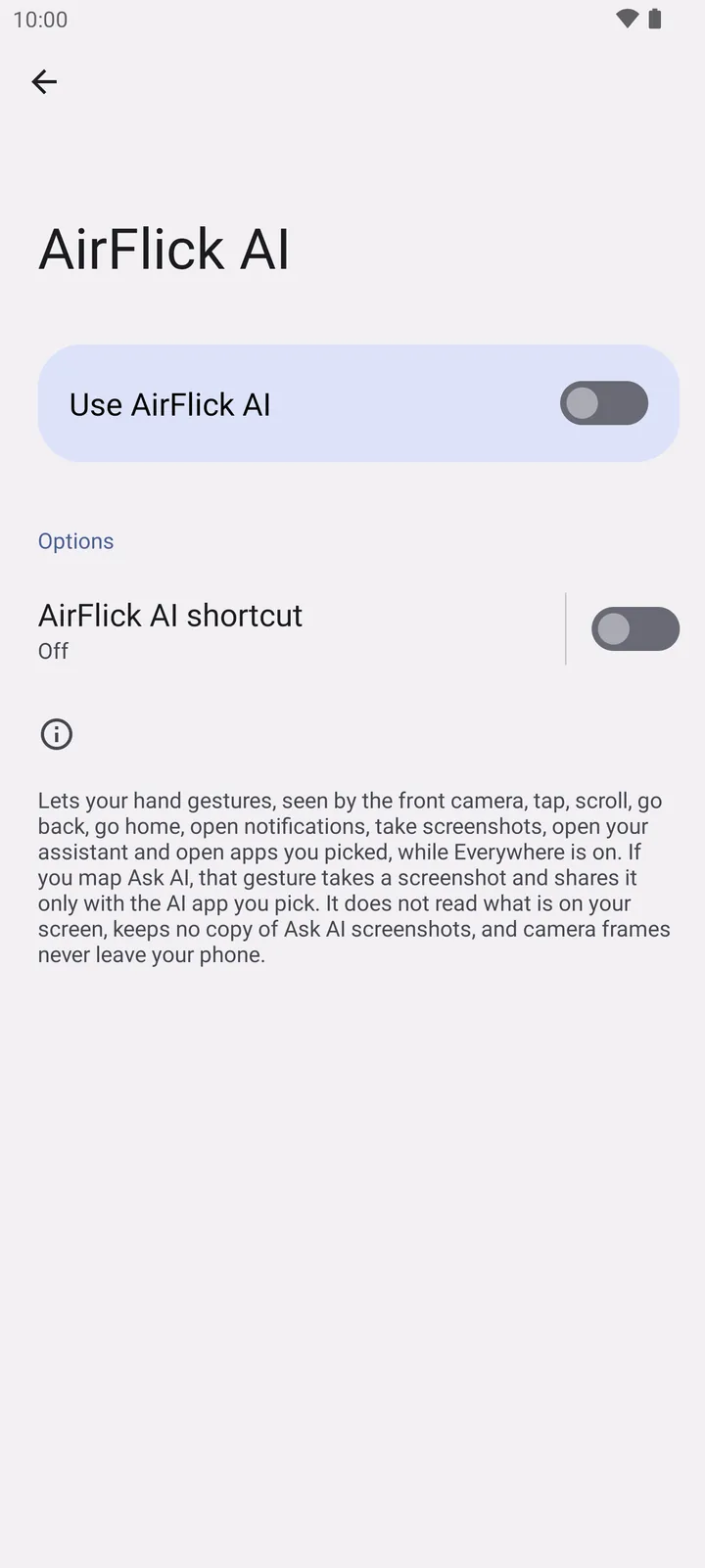
- Use AirFlick AI switch
AirFlick AI comes back by itself once the service is on: to Setup with the row ticked, or to Home with Everywhere started. If it doesn't, tap the Done. Tap to return notification.
On your phone
- Switch greyed out (Android 13 and later)
- Test builds installed outside the Play Store need one extra step: open App info for AirFlick AI, tap the ⋮ menu at the top right, choose Allow restricted settings, confirm, then turn the service on again. Play Store installs don't need this.
- Samsung
- Settings, Accessibility, Installed apps, AirFlick AI.
- OnePlus, OPPO and realme
- Settings, Additional settings, Accessibility, Downloaded apps, AirFlick AI.
- Xiaomi, Redmi and POCO
- Settings, Additional settings, Accessibility, Downloaded apps, AirFlick AI.
How to turn it off
- Open Android Settings, Accessibility, AirFlick AI, and turn Use AirFlick AI off. Gestures in other apps then stop tapping and scrolling; volume and media keys still work.