Getting started
Prop the phone up, allow the camera and try your first gestures on Home.
Open AirFlick AI. On Home, keep the switch at the top on In this app and tap Start. Allow the camera when Android asks: frames are processed on the phone and never saved.
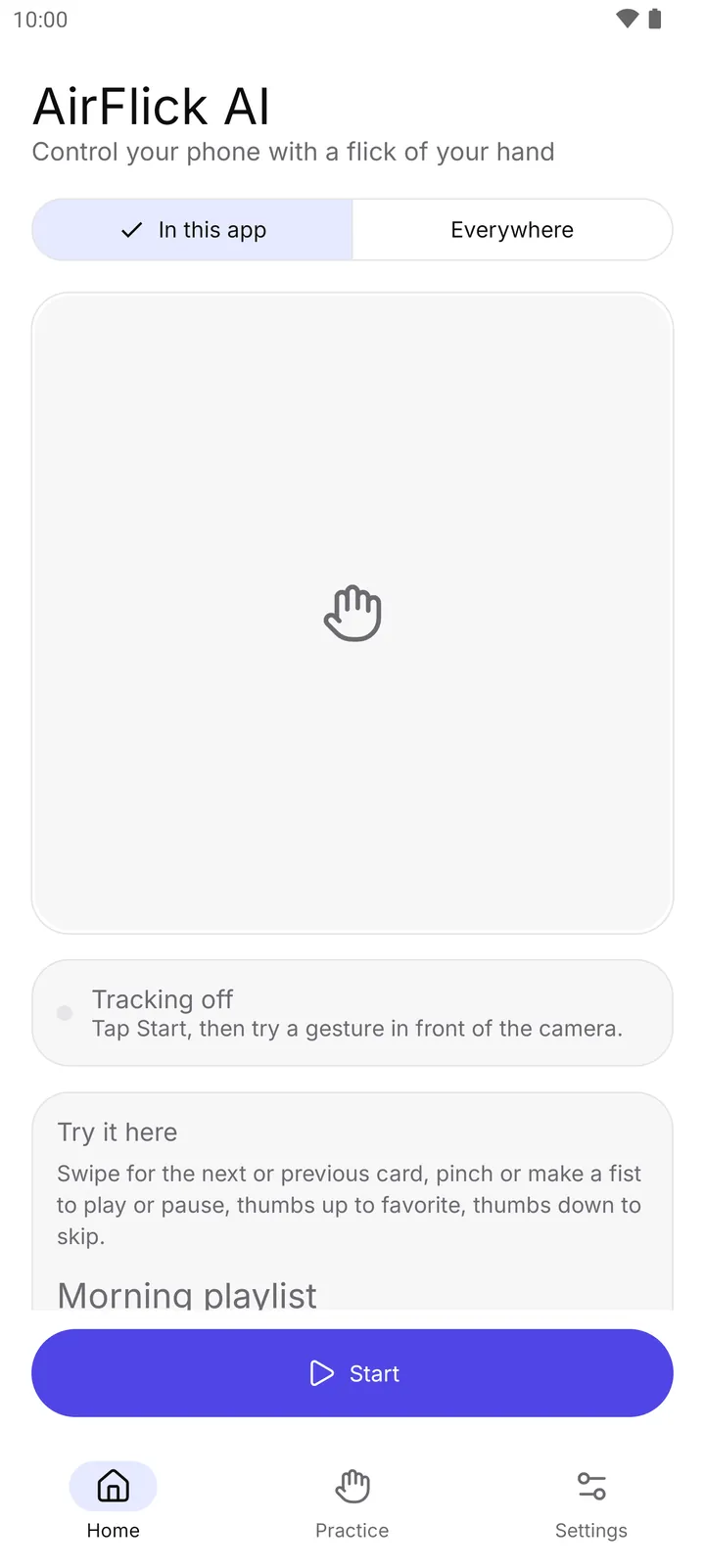
- In this app
- Start button
Prop the phone up so it stands on its own, facing you. Hold one hand about an arm's length from the front camera, with a light in front of you rather than behind.
Try a swipe: move your open hand up or down about a hand's length in under half a second. The demo cards on Home follow your swipes, and the chip over the preview names each gesture it sees.
Open Practice at the bottom to try all 12 gestures. Each card checks off when the gesture is recognized.
Open Setup from Home or Settings to see what else can be turned on, such as Everywhere for other apps.
How to turn it off
- Tap Stop on Home. The camera turns off at once.
- To take camera access away, open Android Settings, Apps, AirFlick AI, Permissions, Camera, and choose Don't allow.